Connect Snowflake
Experimentation is in beta.
Flagsmith writes experiment events to a table in your Snowflake account and computes experiment results by querying it there. Each environment has one warehouse connection.
Before you start
- On Flagsmith Cloud, a Scale-Up or Enterprise subscription.
- A Snowflake user with the
ACCOUNTADMINrole, to run the setup SQL. - A terminal with
openssl, to generate a key pair.
1. Generate a key pair
Flagsmith signs in to Snowflake with a key pair. Run these commands on your machine:
openssl genrsa 2048 | openssl pkcs8 -topk8 -inform PEM -out flagsmith_key.p8 -nocrypt
openssl rsa -in flagsmith_key.p8 -pubout -out flagsmith_key.pub
flagsmith_key.pub is the public key, which you register in Snowflake in step 2. flagsmith_key.p8 is the private key,
which you enter in Flagsmith in step 3. Keep the private key file safe.
2. Create the events table and service user
Open a SQL worksheet in Snowflake and paste this script. Replace <PUBLIC_KEY> with the contents of
flagsmith_key.pub, without the BEGIN and END lines. Then run it with Run All. Otherwise Snowflake runs only
the statement under the cursor, and the rest fails with "does not exist or not authorized". It is safe to run more than
once. The same SQL is available to copy from the Flagsmith dashboard.
-- Create the role, warehouse, database, schema and events table
USE ROLE ACCOUNTADMIN;

CREATE ROLE IF NOT EXISTS FLAGSMITH_ROLE;

CREATE WAREHOUSE IF NOT EXISTS FLAGSMITH_WH
  WAREHOUSE_SIZE = XSMALL
  AUTO_SUSPEND = 60
  AUTO_RESUME = TRUE
  INITIALLY_SUSPENDED = TRUE;

CREATE DATABASE IF NOT EXISTS FLAGSMITH;
CREATE SCHEMA IF NOT EXISTS FLAGSMITH.FLAGSMITH_EXP;

CREATE TABLE IF NOT EXISTS FLAGSMITH.FLAGSMITH_EXP.EVENTS (
  ENVIRONMENT_KEY STRING NOT NULL,
  EVENT           STRING NOT NULL,
  FEATURE_NAME    STRING,
  TIMESTAMP       TIMESTAMP_NTZ NOT NULL,
  COLLECTED_AT    TIMESTAMP_NTZ,
  IDENTIFIER      STRING NOT NULL,
  VALUE           STRING,
  TRAITS          STRING,
  METADATA        STRING,
  SDK_LANGUAGE    STRING,
  SDK_VERSION     STRING
);

-- Allow the Flagsmith role to read and write experiment events
GRANT USAGE ON WAREHOUSE FLAGSMITH_WH TO ROLE FLAGSMITH_ROLE;
GRANT USAGE ON DATABASE FLAGSMITH TO ROLE FLAGSMITH_ROLE;
GRANT USAGE ON SCHEMA FLAGSMITH.FLAGSMITH_EXP TO ROLE FLAGSMITH_ROLE;
GRANT SELECT, INSERT ON TABLE FLAGSMITH.FLAGSMITH_EXP.EVENTS TO ROLE FLAGSMITH_ROLE;

-- Create the Flagsmith service user with your public key
CREATE USER IF NOT EXISTS FLAGSMITH_SERVICE
  TYPE = SERVICE
  DEFAULT_ROLE = FLAGSMITH_ROLE
  DEFAULT_WAREHOUSE = FLAGSMITH_WH
  RSA_PUBLIC_KEY = '<PUBLIC_KEY>';
GRANT ROLE FLAGSMITH_ROLE TO USER FLAGSMITH_SERVICE;
The warehouse suspends itself after 60 seconds idle and resumes when Flagsmith reads events; writing events doesn't wake it.
If you change any of the names in the script, use the same names in step 3. Names may contain only letters, numbers,
underscores and $, and must start with a letter or underscore. Flagsmith stores them in upper case.
Flagsmith doesn't create or alter the table, so keep exactly these columns and types.
3. Connect in Flagsmith
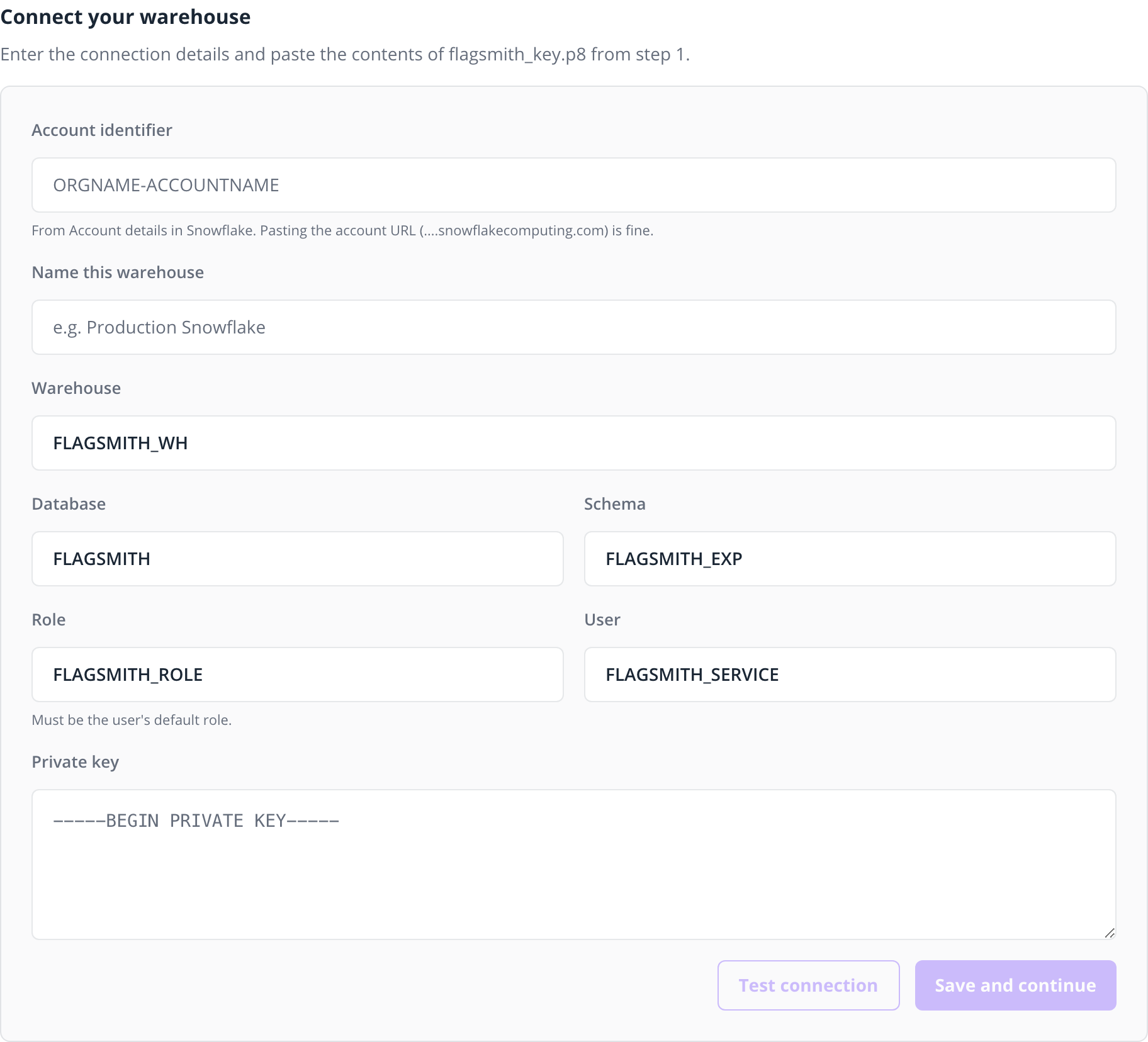
- Go to Environment Settings › Warehouse and select Snowflake.
- Fill in the connection details:
- Account identifier:
ORGNAME-ACCOUNTNAME, from Account details in Snowflake. Pasting the account URL (….snowflakecomputing.com) is fine. It can't be changed after saving. - Name this warehouse: any name, e.g.
Production Snowflake. - Warehouse, Database, Schema, Role and User: the names from the script in step 2. The defaults match the script. The role must be the user's default role.
- Private key: the contents of
flagsmith_key.p8, including theBEGIN PRIVATE KEYandEND PRIVATE KEYlines. Flagsmith stores it encrypted and doesn't show it again.
- Account identifier:
- Click Test connection. Once it succeeds, click Save and continue. The test checks that Flagsmith can sign in with the key, and that the events table exists and has the expected columns. If the test can't connect, you can save anyway and test again later, but events won't be delivered until it succeeds. If Flagsmith rejects a field, such as the account identifier or private key, fix it before saving.
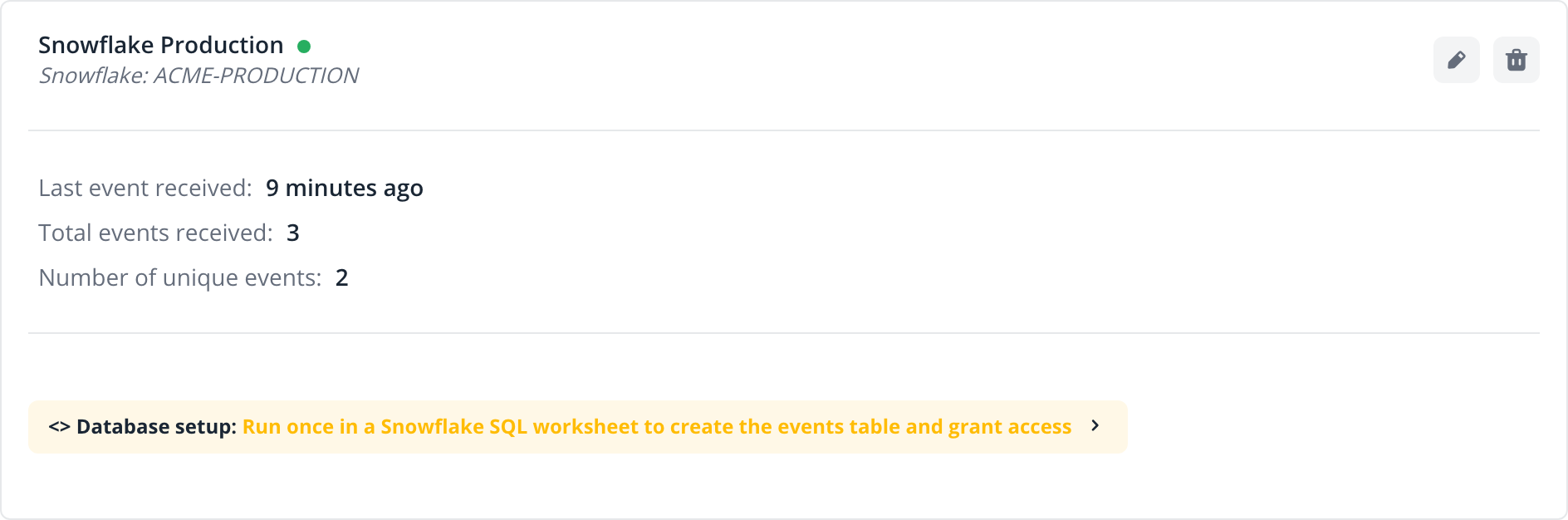
- On Flagsmith Cloud, to verify events reach your table, click Send your first event on the connection card; the button disappears once the first event arrives.
Manage the connection
To change the warehouse, database, schema, role or user, edit the connection and enter the private key again, so that Flagsmith can test the connection. Then click Test connection and Save changes.
Rotate the key
Snowflake allows two public keys on a user, so you can rotate the key without downtime.
-
Generate a new key pair, as in step 1.
-
Register the new public key on the user, in a SQL worksheet. Replace
<NEW_PUBLIC_KEY>with the contents of the new public key file, without theBEGINandENDlines:ALTER USER FLAGSMITH_SERVICE SET RSA_PUBLIC_KEY_2='<NEW_PUBLIC_KEY>'; -
Edit the connection in Flagsmith and enter the new private key. Leave the other fields as they are.
-
Click Test connection, then Save changes.
-
Remove the old public key from the user:
ALTER USER FLAGSMITH_SERVICE UNSET RSA_PUBLIC_KEY;
Change account
The account identifier can't be changed. To use a different Snowflake account, disconnect and create a new connection.
Troubleshooting
Errors show as the result of Test connection, or on the connection card with status Errored when event delivery fails.
| Message | Where | What to do |
|---|---|---|
| Authentication failed. | Test, card | Check User, that the user isn't disabled, and that the public key registered on it matches the private key entered in Flagsmith. |
| Snowflake account not found. | Test, card | Check Account identifier. Once saved, it can't be changed; see Change account. |
| The role does not exist or is not granted to the user. | Test, card | Check Role, and that the GRANT ROLE … TO USER … statement in step 2 ran. |
| Warehouse not found, or the role cannot use it. | Test, card | Check Warehouse, and that the role has USAGE on it. |
| Events table not found in the configured database. Run the setup SQL to create it. | Test, card | Snowflake reports a missing database, schema or table, and one the role can't see, the same way. Check Database and Schema, then run the script in step 2 again with Run All. |
| Permission denied on the events table. The user needs SELECT and INSERT on it. | Test | Run the GRANT statements in step 2 again for the connection's role. |
| Permission denied on the events table. | Card | Run the GRANT statements in step 2 again for the user's default role. |
| Database does not exist. | Card | Check Database, and that the user's default role has USAGE on it. |
| The events table's columns don't match the setup SQL. | Test, card | Make the table's columns and types match step 2 exactly. |
| The query timed out. | Test, card | Check the warehouse's load. |
| Could not connect to the host. | Test, card | Check Account identifier, then test again. |
| The Snowflake account rejected the request. | Test, card | Check that the role has the grants in step 2. Otherwise, contact support. |
| Connection failed. | Test, card | Contact support. |